
 By admin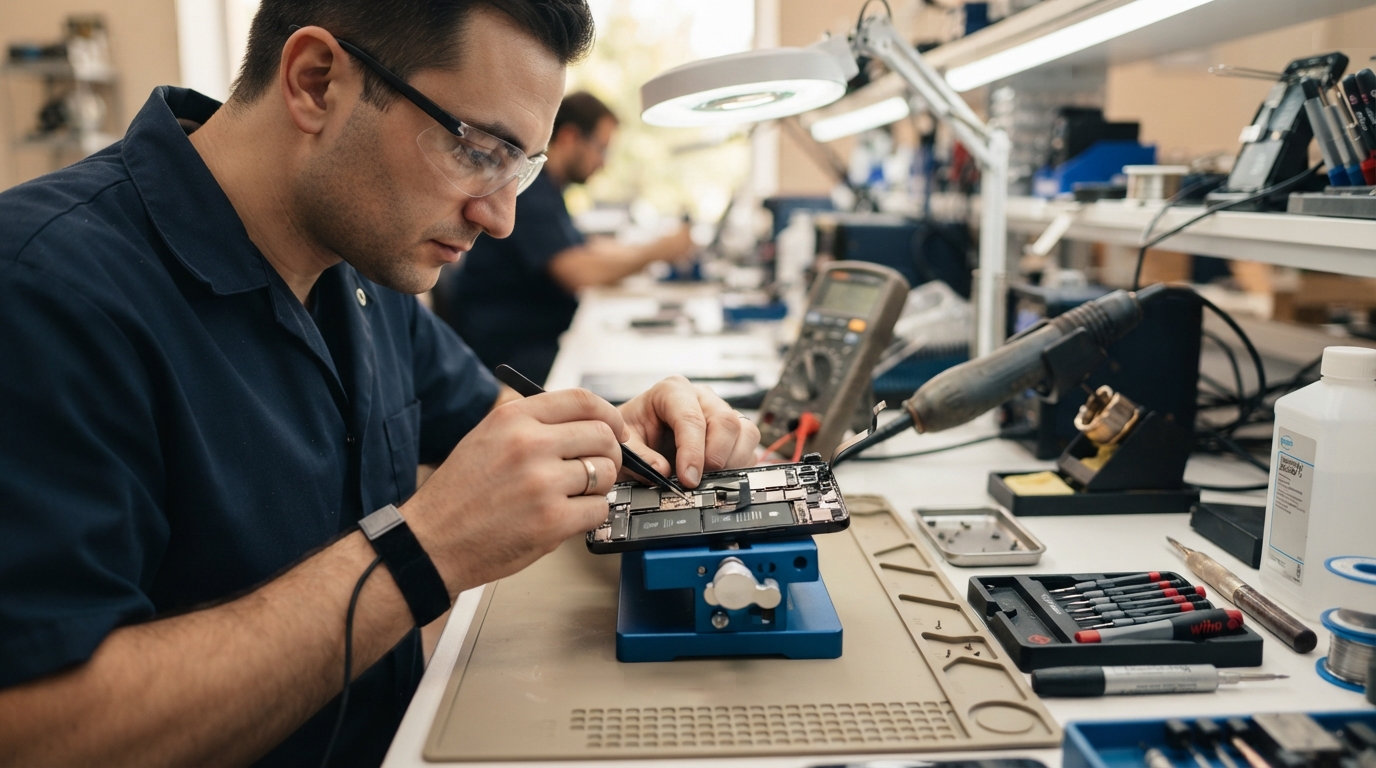
It often starts with a small moment of confusion. You’re watching a video, expecting crisp audio, but the sound comes through muffled and distant. You turn the volume all the way up, only to hear crackling, distortion, or almost nothing at all. At first, it seems like a temporary glitch, yet the problem follows you from calls to music, notifications, and voice messages. Suddenly, a device you rely on every day becomes frustrating to use.Learning how to fix phone speaker issues can save both time and money. While it’s easy to assume that poor sound means expensive repairs or a replacement phone, many speaker problems stem from simple causes such as dust buildup, software settings, or temporary system errors. In many cases, a careful diagnosis and a few practical steps are enough to restore clear audio without opening the device or visiting a repair shop.
Whether your phone’s speaker sounds distorted, too quiet, or completely silent, understanding the possible causes will help you identify the right solution while avoiding unnecessary repairs.
Understanding Why Phone Speakers Stop Working
A smartphone speaker is a compact but remarkably sophisticated component. It converts electrical signals into sound using a tiny diaphragm and magnetic system, all housed inside an extremely small enclosure. Because of its size, even minor obstructions or software conflicts can have a noticeable impact on sound quality.
Unlike external speakers, phone speakers are constantly exposed to dust, lint, pocket debris, moisture, and accidental drops. At the same time, software updates, Bluetooth settings, and app conflicts can interrupt audio output even when the hardware itself remains perfectly functional.
The key to solving the problem is identifying whether the issue originates from software, environmental factors, or physical damage.
Common Signs of Speaker Problems
Not every audio issue points to the same underlying cause. Recognizing the symptoms can narrow down the troubleshooting process.
| Symptom | Possible Cause |
|---|---|
| Very low volume | Dust, lint, or blocked speaker grille |
| Crackling or distorted sound | Moisture, damaged speaker, or debris |
| No sound during media playback | Software or audio settings |
| Speaker works only on calls | App or media configuration issue |
| Sound comes through Bluetooth only | Wireless audio connection still active |
| Intermittent audio | Loose internal connection or hardware failure |
Understanding these patterns helps prevent unnecessary repairs and directs attention toward the most likely solution.
Start With the Simplest Checks
Before assuming the speaker has failed, begin with the obvious.
Verify that the phone’s volume is turned up for media playback, not just ringtones. Many smartphones separate audio controls for calls, alarms, notifications, and media, making it easy to overlook one setting.
Also, make sure Silent Mode or Do Not Disturb isn’t limiting audio unexpectedly. While these settings usually affect notifications rather than media playback, they can sometimes create confusion during troubleshooting.
Finally, disconnect any wired headphones or accessories that may still be directing sound away from the built-in speaker.
Check Bluetooth Connections
One surprisingly common explanation for “broken” speakers is an active Bluetooth connection.
If your phone is still paired with wireless earbuds, a speaker, or your car’s audio system, it may continue sending sound externally even when the accessory is no longer nearby.
Open the Bluetooth settings and temporarily disconnect or disable Bluetooth completely. Then test audio using a video or music app.
Many apparent speaker failures are resolved in seconds with this simple adjustment.
Clean the Speaker Grille Carefully
Pocket lint and dust accumulate gradually, often without being noticed.
Because smartphone speaker openings are extremely small, even a thin layer of debris can reduce sound clarity and volume.
Use a soft, dry toothbrush or an anti-static brush to gently sweep across the speaker grille. Compressed air can help remove loose particles, but use short bursts from a safe distance to avoid forcing debris deeper into the phone.
Avoid inserting sharp objects such as needles, pins, or toothpicks into the speaker opening. These can puncture the speaker membrane or damage protective mesh.
Cleaning should always be gentle and patient rather than forceful.
Restart Your Phone
Software processes occasionally become stuck, particularly after system updates or prolonged use.
Restarting the device clears temporary memory, resets audio services, and resolves many software-related glitches without affecting personal data.
Although this step seems simple, it remains one of the most effective troubleshooting methods for a wide range of smartphone issues.
After restarting, test multiple audio sources rather than relying on just one application.
Test Different Apps
If sound fails only within a single application, the speaker may not be the problem.
Try playing music, streaming a video, using speakerphone during a call, and listening to system notification sounds. If audio works everywhere except one app, the issue likely involves that application’s settings, permissions, or recent updates.
Updating or reinstalling the affected app often restores normal functionality.
Testing multiple sources helps separate software-specific issues from broader hardware problems.
Check for Water or Moisture
Modern smartphones often include some level of water resistance, but moisture can still affect speaker performance temporarily.
Water trapped inside the speaker chamber may produce muffled or crackling audio until it evaporates completely.
Allow the phone to dry naturally in a well-ventilated area. Positioning the speaker downward can help moisture escape through gravity.
Avoid using hair dryers or high heat, which may damage internal components or seals.
Some smartphone manufacturers include built-in speaker vibration features that help expel water after accidental exposure.
Update the Operating System
Software bugs occasionally interfere with audio drivers or system processes.
Installing the latest operating system updates ensures compatibility improvements, security patches, and bug fixes that may resolve speaker-related issues.
Likewise, keeping individual apps updated reduces the likelihood of software conflicts affecting audio playback.
While updates don’t repair damaged hardware, they frequently eliminate problems caused by outdated software.
Reset Audio Settings
Certain accessibility features or customized sound settings may unintentionally alter speaker performance.
Check equalizer settings, mono audio, balance controls, hearing enhancements, and sound customization features.
If available, restoring audio settings to their default configuration provides a clean starting point for troubleshooting.
Sometimes, changes made months earlier are forgotten until they unexpectedly affect playback.
When Safe Mode Helps
Third-party applications occasionally interfere with audio services.
Booting the phone into Safe Mode temporarily disables downloaded apps while leaving the operating system intact.
If the speaker functions normally in Safe Mode, one of your installed applications is likely causing the issue.
Removing recently installed or suspicious apps one at a time often identifies the source of the conflict.
Factory Reset as a Last Software Step
If every software troubleshooting method fails and hardware damage appears unlikely, a factory reset may resolve deeply rooted operating system issues.
Before proceeding, back up photos, contacts, messages, and important files.
A factory reset erases personal data and restores the phone to its original software configuration.
Because of its impact, this step should be considered only after exhausting simpler solutions.
Recognizing Hardware Damage
Sometimes, software isn’t the problem.
Phones dropped onto hard surfaces may develop loose speaker connections, damaged diaphragms, or cracked solder joints.
Similarly, prolonged exposure to moisture, sand, or corrosion can permanently impair speaker performance.
If the speaker produces buzzing, severe distortion, or complete silence despite successful software troubleshooting, internal damage becomes increasingly likely.
Professional diagnosis can confirm whether the speaker module itself requires replacement.
When Professional Repair Makes Sense
Opening modern smartphones without proper tools carries significant risks.
Internal batteries, waterproof seals, display cables, and delicate connectors can be damaged during disassembly.
If your device remains under warranty or is protected by accidental damage coverage, professional repair is often the safest and most cost-effective option.
Certified technicians can replace individual speaker modules while preserving other components and maintaining device integrity.
Attempting complex internal repairs without experience may increase repair costs rather than reduce them.
Preventing Future Speaker Problems
Good habits extend the life of any smartphone speaker.
Keeping the phone in a clean pocket or case minimizes lint accumulation. Avoid exposing the device to excessive moisture, sand, or dusty environments whenever possible.
Cleaning the speaker grille periodically prevents gradual blockage that reduces sound quality over time.
Using protective cases with well-designed speaker cutouts also helps shield openings without interfering with audio performance.
Most importantly, avoid playing audio continuously at maximum volume for extended periods, as excessive output can accelerate wear on tiny speaker components.
Conclusion
Understanding how to fix phone speaker problems begins with recognizing that not every audio issue signals hardware failure. In many cases, the solution is remarkably simple—disconnecting Bluetooth, cleaning the speaker grille, restarting the device, or updating the software can restore sound within minutes.
When these steps don’t resolve the issue, a systematic approach helps distinguish software glitches from genuine hardware damage. That knowledge allows you to make informed decisions about repair rather than replacing a perfectly serviceable phone. With careful troubleshooting and routine maintenance, your smartphone speaker can continue delivering reliable, clear audio long after the first signs of trouble appear.